

In-Place Archiving is an Exchange feature that is available with Exchange Online (Plan 2), Microsoft 365 E3 and Microsoft 365 E5. This feature provides users with an additional mailbox that can be accessed via Outlook or Outlook online, but not Outlook for Mac. In-Place Archiving is helpful for users who eclipse the 100GB mailbox limit – Exchange will automatically start moving mail to the Archive. 100GB sounds like a lot of mail but I’ve seen plenty of customer eclipse it. However, the other thing In-Place Archiving does is leverage the default MRM (Message Records Management) policy in Exchange. So, after you enable In-Place Archiving any items that are over two years old will automatically be moved to the archive mailbox, for example.
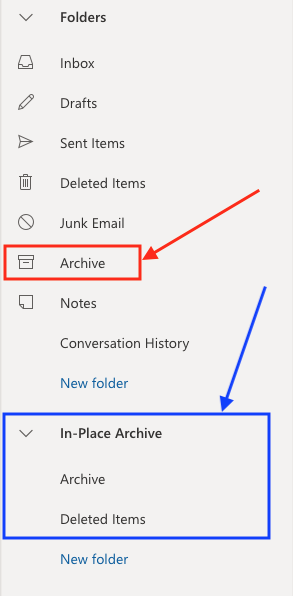
Note: Don’t confuse Archive (red box below) in your mailbox with In-Place Archiving (blue box below). Archive is an organizational method used to move items you don’t want to delete, but may have categorized with tags, out of the Inbox and into the Archive. In-Place Archiving is what is described in the paragraph above.
Enable Archive Mailbox in the Compliance Center
- Navigate to the Microsoft 365 Compliance Center
- Click on the Information Governance module on the left navigation bar
- Click on the Archive tab
- Select the mailbox you want to enable and click Enable archive
- Repeat this for each mailbox or follow the PowerShell instructions below to bulk-enable this feature
Enable Archive Mailbox with PowerShell
If you prefer using PowerShell, or the steps above throw an unexpected error (which happens from time-to-time), using PowerShell seems to always get the job done. Instructions below.
## Ensure all downloads are signed by a trusted publisher ##
Set-ExecutionPolicy RemoteSigned

## Install the Exchange Online Management Module ##
Install-Module -Name ExchangeOnlineManagement

## Import the Exchange Online Module ##
Import-Module ExchangeOnlineManagement

## Connect to the Exchange Tenant ##
Connect-ExchangeOnline -UserPrincipalName {username} -ShowProgress $true

## Enable one archive mailbox ##
Enable-Mailbox -Identity <username> -Archive

## Disconnect Session ##
Disconnect-ExchangeOnline
Enable Archive Mailbox for All Mailboxes with PowerShell
Bulk-enabling In-Place Archiving for all mailboxes in your environment is equally as easy with PowerShell
## Ensure all downloads are signed by a trusted publisher ##
Set-ExecutionPolicy RemoteSigned

## Install the Exchange Online Management Module ##
Install-Module -Name ExchangeOnlineManagement

## Import the Exchange Online Module ##
Import-Module ExchangeOnlineManagement

## Connect to the Exchange Tenant ##
Connect-ExchangeOnline -UserPrincipalName {username} -ShowProgress $true

## Bulk-enable archive mailbox ##
Get-Mailbox -Filter {ArchiveStatus -Eq "None" -AND RecipientTypeDetails -eq "UserMailbox"} | Enable-Mailbox -Archive

## Disconnect Session ##
Disconnect-ExchangeOnline
Disable Archive Mailbox with PowerShell
Alternatively, if you want to disable a mailbox from having In-Place Archiving you can run the following commands. Unlike enabling, the UI generally throws unexpected errors when disabling so using PowerShell instead gets around those errors.
## Ensure all downloads are signed by a trusted publisher ##
Set-ExecutionPolicy RemoteSigned

## Install the Exchange Online Management Module ##
Install-Module -Name ExchangeOnlineManagement

## Import the Exchange Online Module ##
Import-Module ExchangeOnlineManagement

## Connect to the Exchange Tenant ##
Connect-ExchangeOnline -UserPrincipalName {username} -ShowProgress $true

## Disable one archive mailbox ##
Disable-Mailbox -Identity <username> -Archive

## Disconnect Session ##
Disconnect-ExchangeOnline